 Meter Matters
Type a bill in, or scan it
For a bill on paper, a utility with nothing to download, or a water bill that comes four times a year. A date and an amount is all it takes; add what was used and the app can work out your price per unit and compare with last year.
1. The form
On Add bills, scroll to Add a bill by hand.
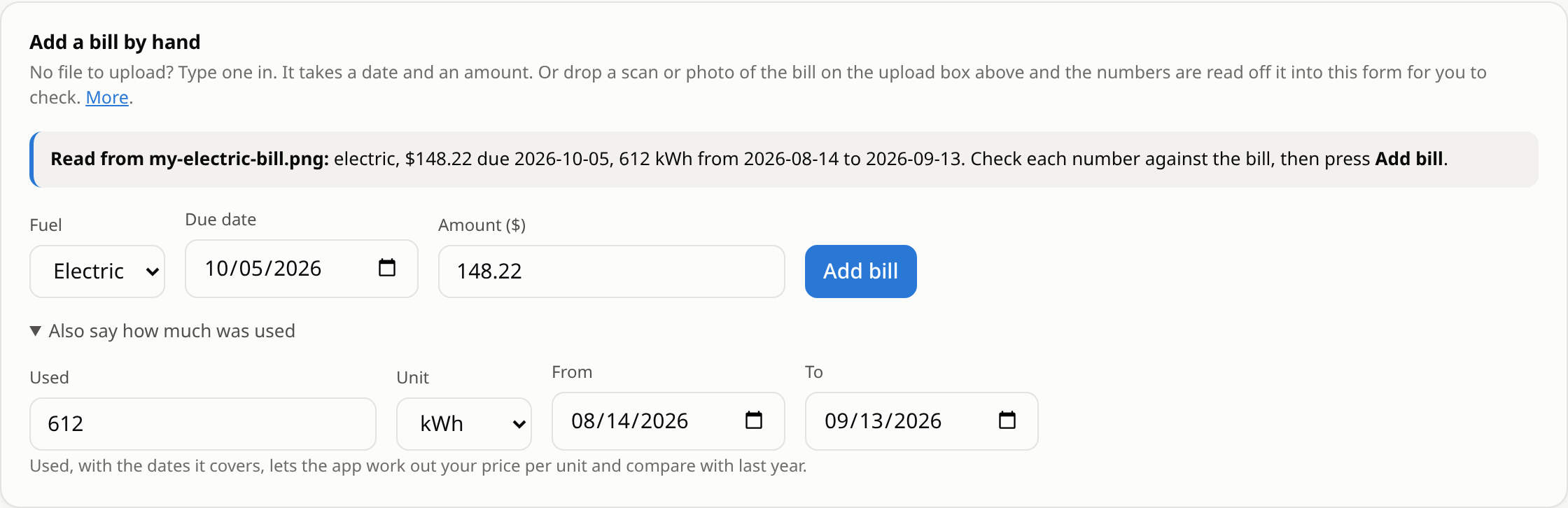
- Fuel: electric, gas or water.
- Due date and amount, straight off the bill.
- Press Add bill. It is on your dashboard at once.

2. Also say how much was used
Open Also say how much was used under the form and give the amount used, its unit, and the dates the bill covers (the service period printed on it, up to 120 days). With that, the bill joins the weather comparison, the price-per-unit history and the "what changed" findings, exactly as an uploaded export would.
- Electric in kWh; gas in therms or ccf; water in gallons or ccf. A water bill in ccf is converted to gallons on the way in.
- The unit has to match the fuel. Gas in kWh is turned away with a note saying so.
3. Scan or photograph the bill instead
When the server has it switched on, the upload box also takes a PNG, JPG or PDF of one bill. The text is read off the image, and whatever was found (fuel, amount, due date, usage, service dates) is put into the by-hand form for you to check. Nothing is filed until you press Add bill.
- Photograph the bill, or save the PDF your utility emailed you.
- Drop it on the upload box. A large photo is shrunk in your browser first; the limit on what is sent is 4 MB.
- Read the line that appears above the form. It says what was found and what was not.
- Check every number against the bill, fill in anything missing, and press Add bill.
What happens afterwards
A bill typed in is filed under its own account, named Electric (by hand), Gas (by hand) or Water (by hand), so it sits beside bills from an export rather than being mistaken for one. Type the same bill in twice and it is counted once. The Raw data page shows every row, by account, so you can check what was filed. If you typed a figure wrong, that page is where you will see it; there is no editing in the app yet, so ask whoever runs the server to correct the row, or add the right bill by hand and note the wrong one.