 Meter Matters
Forward your bill emails
Your account has an email address that is yours alone. Tell your mailbox to forward your utility's "your bill is ready" emails to it, and from then on each new bill files itself. The app never has a password to your mail and never sees anything your filter does not send.
1. Find your address
On Add bills, the first card is Your private bills address.
It looks like bills-k7m2…@in.example.com: the word bills, a dash, and
twenty-four random letters and digits. Press Copy.
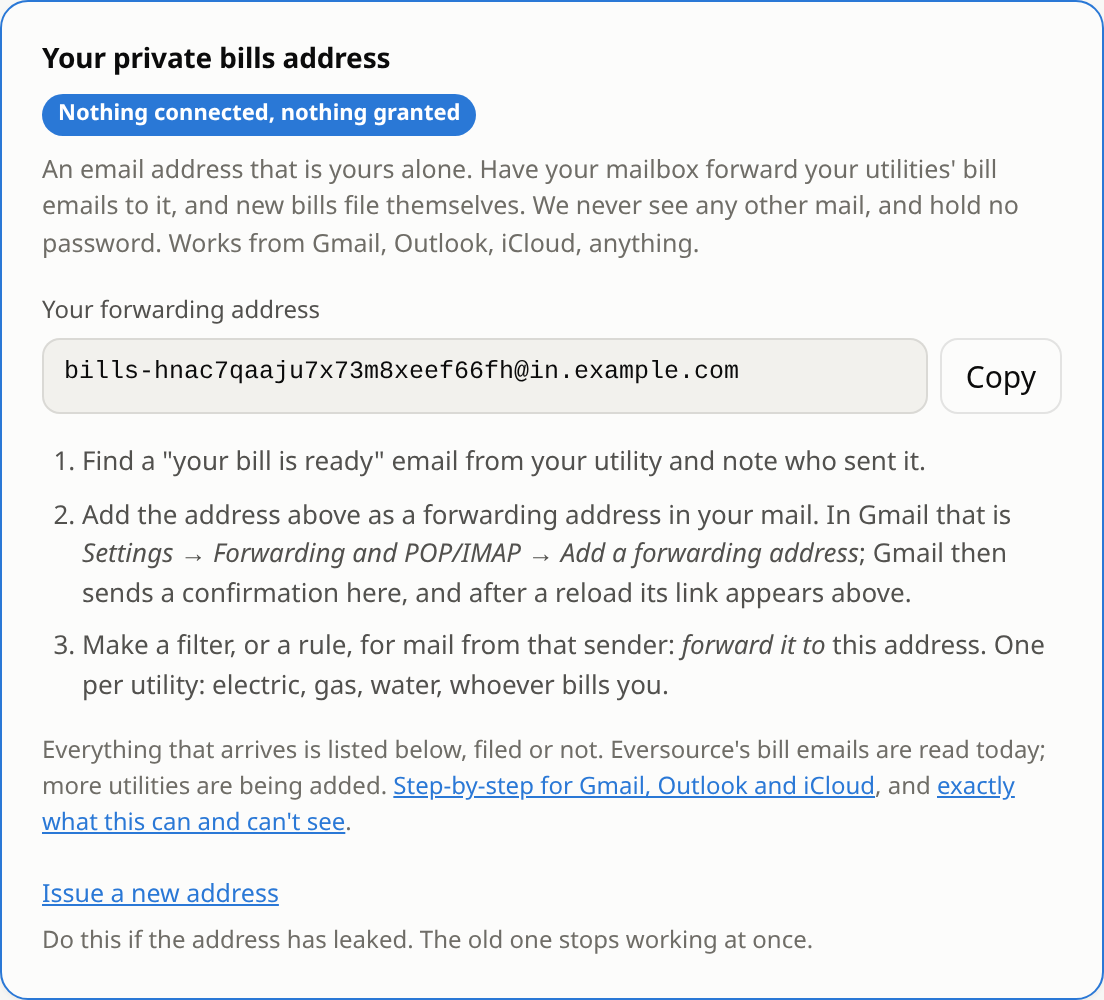
If the card says Not available on this server, the person running it has not switched inbound email on. Upload and by-hand still work, and the operators page says what switching it on involves.
2. Find who sends your bills
Open a recent "your bill is ready" email from your utility and note the exact sender address.
For Eversource it is noreply@notifications.eversource.com. That address is what
your filter will match on, so that only bill emails are forwarded and nothing else.
Which utilities' emails can be read today: Eversource's bill-ready email, for electric and gas. An email from any other sender is logged on the Add bills page as Not filed, and the bill is not read. More utilities are being added; until yours is, uploading is the way to bring its bills in.
3. Set up the filter: Gmail
Gmail wants the destination address confirmed before any filter can forward to it. That is Google's safeguard, and the app helps with it. Three parts.
a. Add the forwarding address
- In Gmail on a computer, open Settings (the gear) → See all settings → the Forwarding and POP/IMAP tab.
- Press Add a forwarding address, paste your bills address, and press Next, then Proceed, then OK.
- Leave Disable forwarding selected on that tab. You are not forwarding your whole mailbox; the filter in part c will forward only the bills.
b. Confirm it
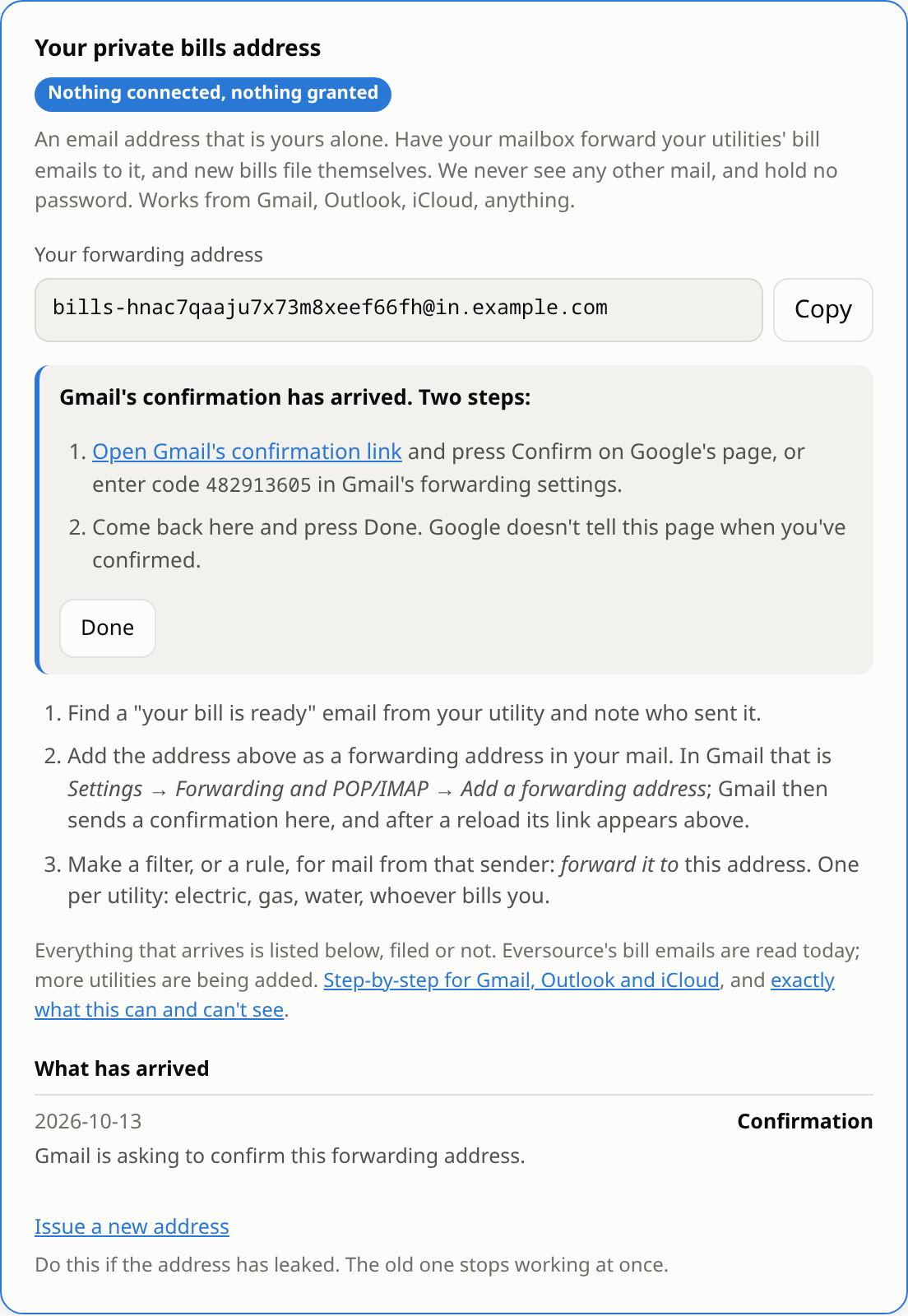
Gmail now sends a confirmation message to your bills address. The app receives it and shows Google's link on the Add bills page. Reload the page, and:
- Press Open Gmail's confirmation link. Google's own page opens; press Confirm. (If you would rather type the code, it is shown next to the link, and goes in the box on Gmail's Forwarding tab.)
- Back on Add bills, press Done. Google does not tell the app when you have confirmed, so this is how it knows.
c. Make the filter
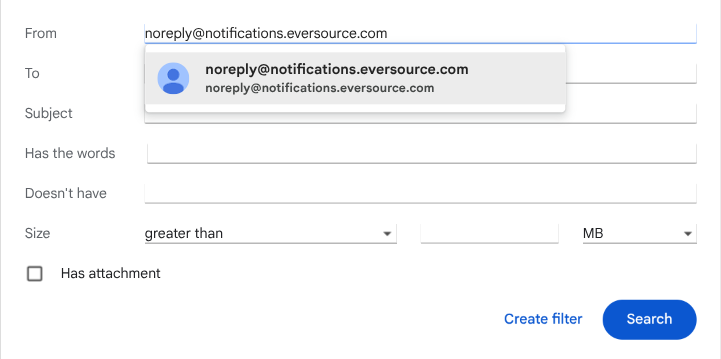
- In Gmail's search box, press the sliders icon on the right (Show search options). Or go to Settings → Filters and Blocked Addresses → Create a new filter; it opens the same panel.
- In From, paste the utility's sender address from step 2. Leave every other field empty. Press Create filter (not Search).
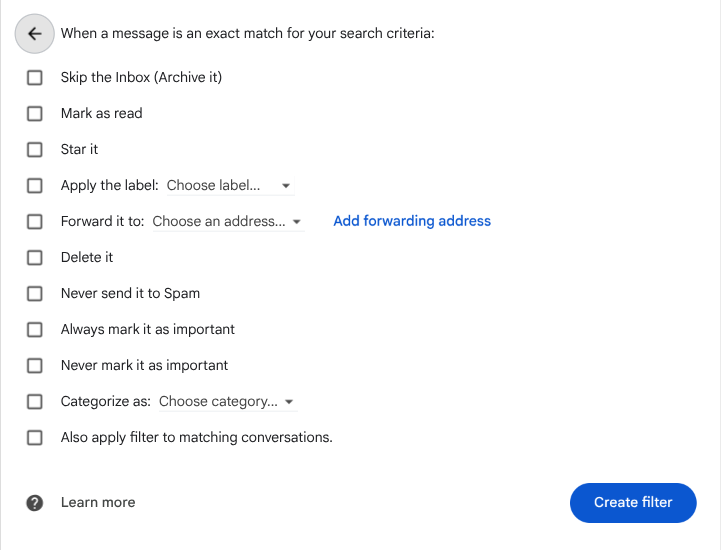
- On the next panel, tick Forward it to and choose your bills address from the list beside it. If the address is not in the list yet, the Add forwarding address link right there does the same as step a, and Gmail will want it confirmed (step b) before the filter can use it.
- Leave everything else unticked and press Create filter.
- One filter per utility. If gas and electric come from different senders, make two.
A Gmail filter applies to mail arriving from now on, not to what is already in the inbox. To bring in past bills, or to try it out right away, forward one by hand (step 5 below).
4. Set up the filter: Outlook, iCloud and others
Outlook.com and Microsoft 365
- Open Settings (the gear) → Mail → Rules → Add new rule.
- Name it. Condition: From, the utility's sender address.
- Action: Forward to, your bills address. Save.
iCloud Mail
- At icloud.com, open Mail, then the gear at the top of the folder list → Settings → Rules → Add a Rule.
- If a message is from the utility's sender address, then Forward to your bills address. Done.
Yahoo, and mail apps without forwarding rules
Yahoo's filters sort mail but do not forward it, and some mail apps only offer forwarding of the whole mailbox. Do not forward your whole mailbox. Forward each bill by hand instead; it is one tap a month.
5. Or forward one by hand
Open the bill email and press Forward, to your bills address. The app finds the utility's own sender and subject inside the forwarded message and files the bill from that. It works from any mail app, including on a phone, and it is the quickest way to check that everything is wired up before the filter has had a bill to forward.
One rule: the forward has to come from the address you signed up with. A forward carries your mail's signature rather than the utility's, so that address is the only proof the app has that it was you. A forward from any other address is logged as Not filed, so that nobody who learns your bills address can plant a bill in it. If your bills land in a different mailbox from the one you signed up with, use a filter there instead; a filter sends the utility's own message through unchanged, signature and all.
A bill forwarded by hand is marked in the log as forwarded by you. The amount and dates are read exactly the same.
6. Watch what arrives
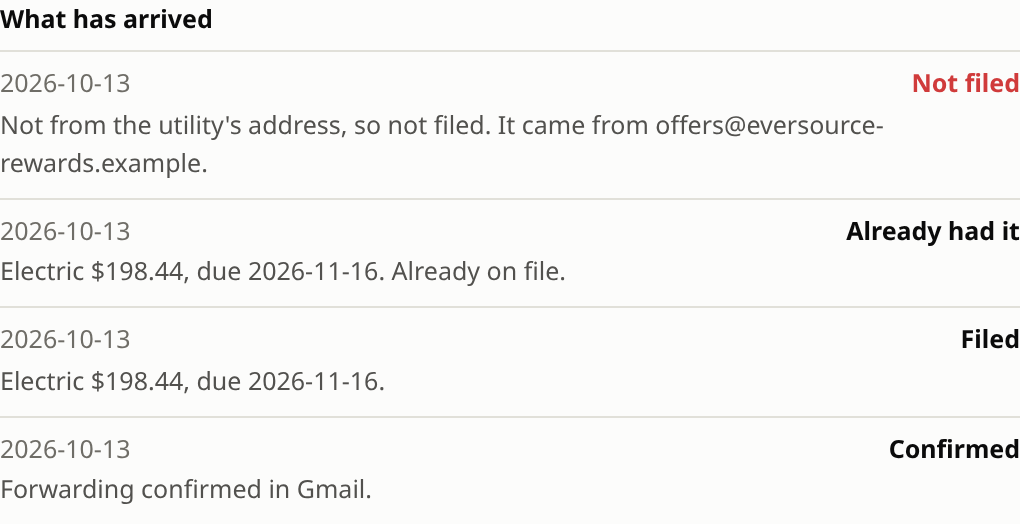
Everything that reaches your address is listed under What has arrived on the card, filed or not, with a line saying what was done and why. The page refreshes the list on its own, so you can watch a bill land.
| Line | Meaning |
|---|---|
| Filed | A new bill, now on your dashboard. The line says the fuel, the amount and the due date. |
| Already had it | The same bill arrived again. Counted once. |
| Not filed | Something was wrong: not from the utility's address, a subject that names neither electric nor gas, or no bill could be read out of it. The line says which. |
| Needs a home | You have more than one home and this bill's account matches none of them yet. A box at the top of the page lets you say where it belongs. More than one home |
| Confirmation | Gmail asking you to confirm the address (step 3b). |
| Confirmed | You pressed Done. |
Each line also says how long the message took to arrive, which is almost entirely the mail path; the app's own share is under a second. The troubleshooting page goes through every Not filed reason.
7. If the address leaks
The address is a secret: anyone who has it could send mail to it. The app only files messages that really come from the utility, so a stranger cannot plant a bill, but if you have pasted the address somewhere you should not have, press Issue a new address at the foot of the card. The old one stops working at once. Then update the filter in your mailbox to the new one; in Gmail that means adding and confirming it again.
What the app sees, and what it does not
- It has no access to your mailbox. No password, no app password, no OAuth grant. There is nothing to revoke because nothing was granted.
- It receives only what your filter forwards. A filter on one sender forwards that sender's mail. Nothing else leaves your mailbox.
- It checks every message. A message that is not from the utility's own address is not filed. The utility's cryptographic signature on the message (DKIM) is checked too, and the log says if it did not verify.
- It keeps the bill, not the email. The amount, the due date, the bill date, the fuel and the last digits of the account number. The message's subject is kept on the log line. The message itself is read once and discarded.
The security page has the same list with more on each point.