 Meter Matters
Upload your utility's files
Every utility's website has a page where you can download your own history. Drop that file on the Add bills page and it is read, sorted and filed. Nothing is connected to your email or to the utility; you come back and drop the next file when you want to.
1. What to download
Two kinds of file are useful, and either one is a fine start:
| File | What it gives you | How to spot it |
|---|---|---|
| Bill history | A row per statement: due date and amount. Years of bills in one go. | Called Billing history, Payment history or Account history. Usually a CSV. |
| Usage export | How much was used over each metered period, often with the cost and sometimes the temperature. | Called Green Button, Download my data or Usage history. A CSV, an XML, or a .zip holding them. |
A PDF of a bill is not an export. The app can read a PDF or a photo of a single bill, but through the scan route on the by-hand page, one bill at a time.
Where it is, utility by utility
Menus move, so these say what to look for rather than exactly where. Once signed in, look for Green Button, Download my data, Usage history or Billing history.
- Eversource (MA, CT, NH)
- eversource.com → Billing & payments for the payment history (a file called
AccountHistory.csv); Energy usage → Download usage data for the Green Button zip. Both drop straight in, and the zip needs no unpacking. - National Grid
- nationalgridus.com → Energy usage → Download usage (Green Button). If the billing page only offers PDFs, add those bills by hand.
- PG&E
- pge.com → Energy usage details → Green Button → Download my data. Pick a date range and CSV or XML. Export electric and gas separately: a file holding both is turned away with a note saying so.
- Con Edison
- coned.com → My Energy Use → Download My Data (Green Button). Pick a year or more.
- Duke Energy
- duke-energy.com → Usage → look for Download or Green Button. Budget-billed accounts still work: usage pairs to each bill by its dates.
- Xcel Energy, SCE, SDG&E, Dominion
- Each has Green Button or Download usage under its usage or energy pages. Any CSV with dates and amounts will do.
- Water and sewer
- Many water utilities offer a usage or billing export too; gallons or CCF both work. Otherwise a quarterly bill typed in by hand is enough.
- Any other utility
- Look for an export of your usage or bills. If the app cannot tell which column is which, it shows you the file and asks. Nothing to export? A date and an amount typed in is all it takes.
2. Drop it in
On Add bills, drag the file onto Upload them yourself, or click the box to choose it. Several files at once are fine; so is the .zip straight from the portal. Files up to 5 MB are accepted, which is far larger than any export. The same box is on each utility's page under Add a new export.
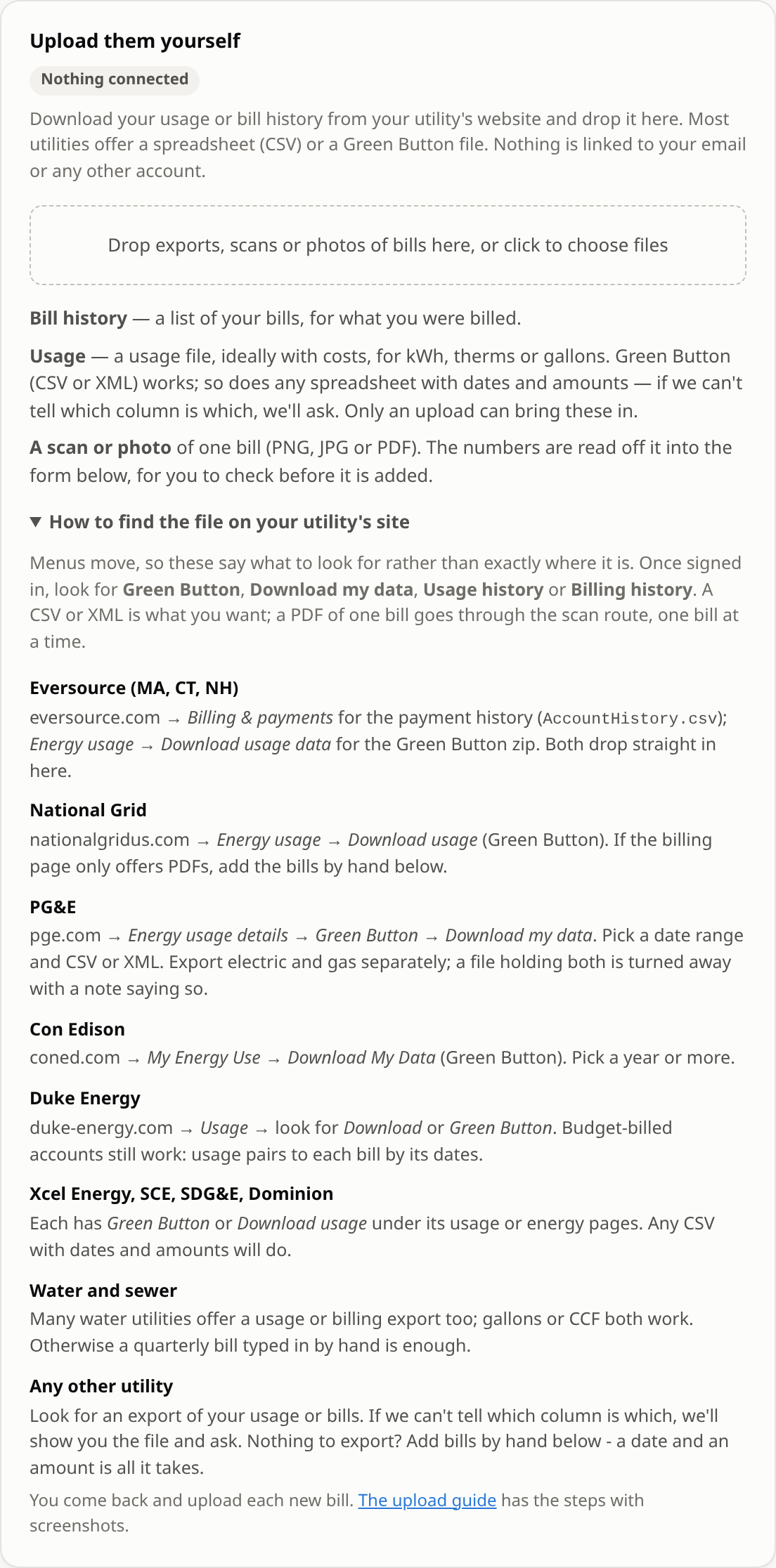
What happens depends on what is inside, not on the file's name:
| Inside | What happens |
|---|---|
| Green Button XML | Interval readings are summed by period. Units come from the file; an unknown unit is refused, never guessed. Solar exports are kept separate from what was delivered, never netted. |
| A usage export with costs | Read and filed as usage. With no bill history yet, a statement is made from each period and marked as an estimate, so the pages fill in at once. |
| A bill history | Each row becomes a statement. Payments and placeholders are skipped. |
| Any other spreadsheet | Columns are matched by name. If it cannot tell which is which, it asks (next section). |
| A PNG, JPG or PDF | Treated as a scan of one bill: see scanning a bill. |
3. If it asks which column is which
A spreadsheet with headings like Period, Reading, Value could be anything. Rather than guess, the app shows the first rows and asks three things: is this usage or bills, which fuel, what unit, and which column plays which role. Nothing is filed until you answer, and the answer is used for that file only.
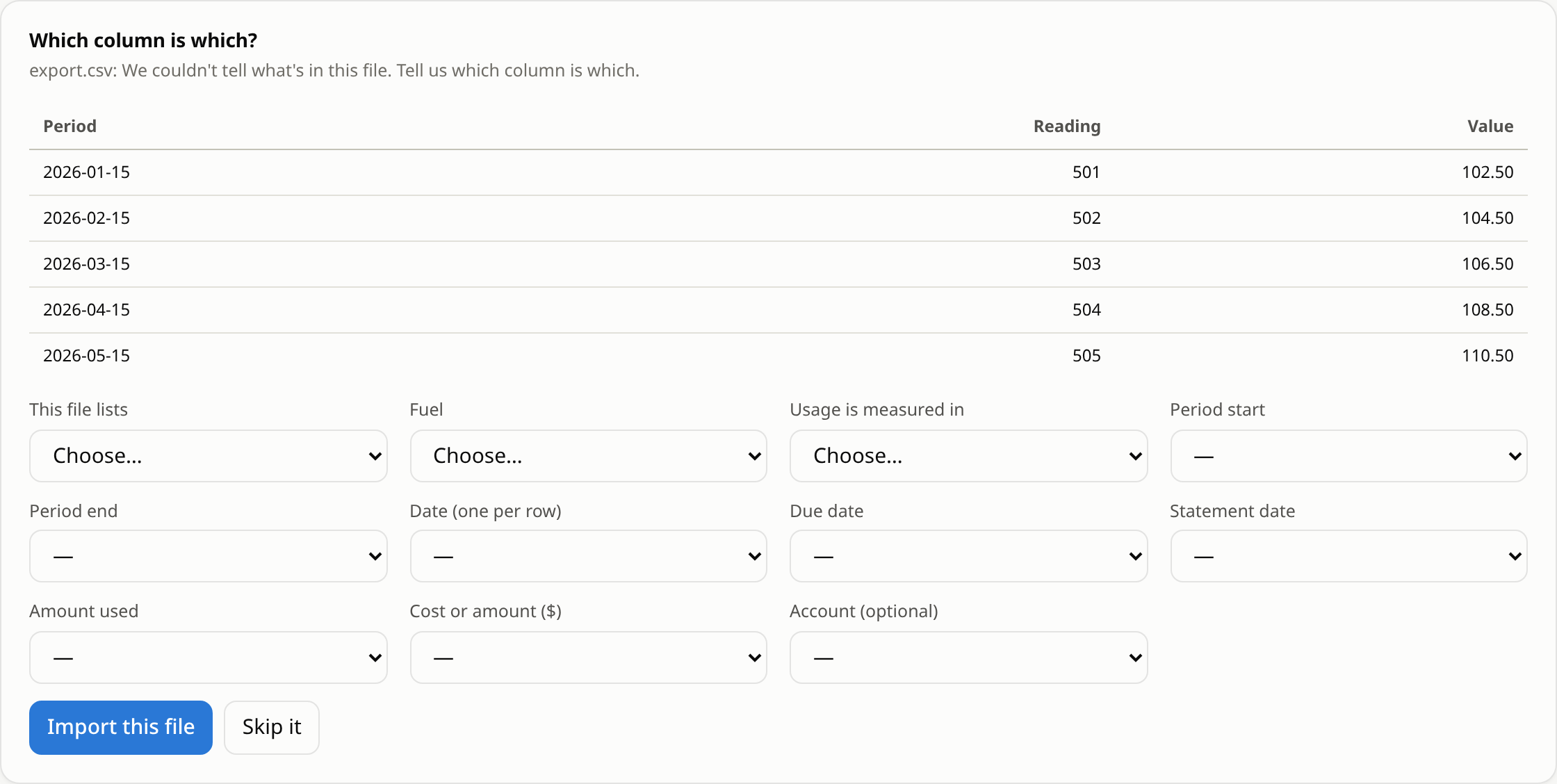
- Kind: usage (how much was used per period) or bills (what you were charged).
- Fuel and unit: electric in kWh or MWh, gas in therms, ccf or mcf, water in gallons or ccf. A unit is never assumed: a column of numbers with no unit is just numbers.
- Columns: a period start and end, or one date per row; the amount used; the cost; and an account number if there is one.
4. What you see after
A line at the top of the page says what was done: how many statements were added, which metered periods the usage covers, and anything worth knowing (a column that was ignored, a unit that was converted). Then the dashboard opens by itself.

Drop the same file again and it says so: nothing is duplicated, and nothing already on file is overwritten. That makes it safe to download a fresh export every few months and drop the whole thing in; only the new periods are added.
Every row that was filed is on the Raw data page, filterable and exportable as CSV, so you can always check what the app thinks it has.
Things worth knowing
- Electric and gas in one file. Some utilities put both in one export. Export them separately; a mixed file is turned away with a note saying so.
- Which account is which. An export is per account. If a file names an account the app
has not seen, it files it as a new account; the account switcher on the utility page shows them all.
A bill history that masks the account number (
******0001) learns the full number from a usage export that has it. - Bills come before usage. A statement due in October usually charges for power metered in August and September. The app pairs each bill with its metered period by amount and date, so the month on the statement is not the month the power was used.
- Years of history. The weather comparison needs the same weeks last year, and the "what changed" findings need a baseline. If the utility offers 24 months, take 24.