Gmail, step by step
- Gmail, in a browser on a computer
- Meter Matters, the Add bills page
- About ten minutes
Gmail will not forward to an address it has not confirmed. So there are three parts: add the address, confirm it, make the filter. Then a test.
Keep two tabs open: Gmail in one, Add bills in the other.
Part 1. Add the forwarding address in Gmail
- On Add bills, press Copy next to your bills address.

- In Gmail, press the gear at the top right, then See all settings.
- Open the Forwarding and POP/IMAP tab.
- Press Add a forwarding address. Paste your bills address. Press Next.
- A window asks you to confirm. Press Proceed. Then OK.
Leave Disable forwarding selected on that tab. You are not forwarding your whole mailbox. The filter in Part 3 forwards only the bills.
Part 2. Confirm it, from Meter Matters
- Go to the Add bills tab and reload the page. The card now says Gmail's confirmation has arrived.
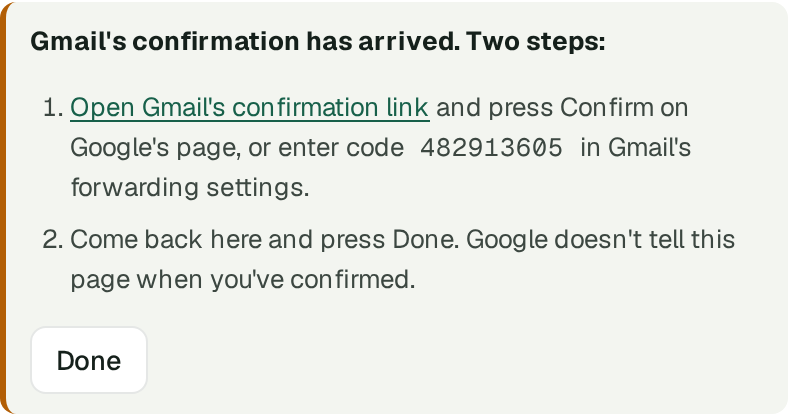
- Press Open Gmail's confirmation link. Google's page opens. Press Confirm.
- Back on Add bills, press Done. Google does not tell the app when you have confirmed, so this is how it knows.
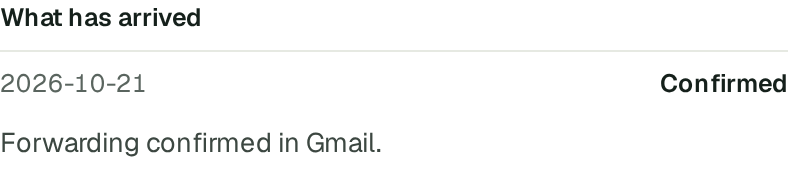
If you would rather not follow the link, the card also shows the code. In Gmail, on the Forwarding tab, there is a box for it next to the new address. Type the code and press Verify.
Nothing on the card after a reload? Google usually sends within seconds, but mail can take a few minutes. Reload again. If there is still nothing after ten minutes, go back to Gmail's Forwarding tab, remove the address, and add it again.
Part 3. Make the filter
- In Gmail's search box at the top, press the sliders icon at the right. The search options open.
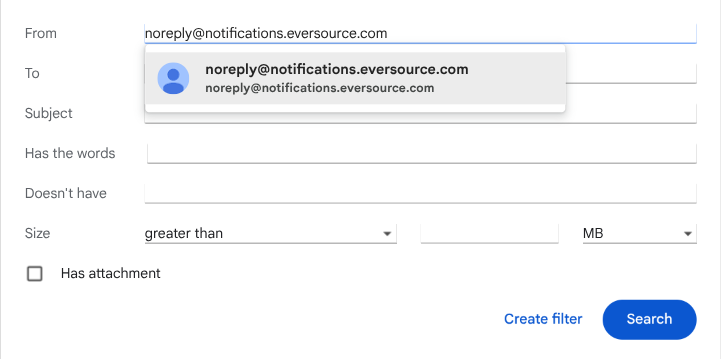
- In From, paste your utility's sender address: the one next to the sender's name on a bill email. Leave every other field empty. Press Create filter, not Search.
- Tick Forward it to. Choose your bills address from the list beside it.
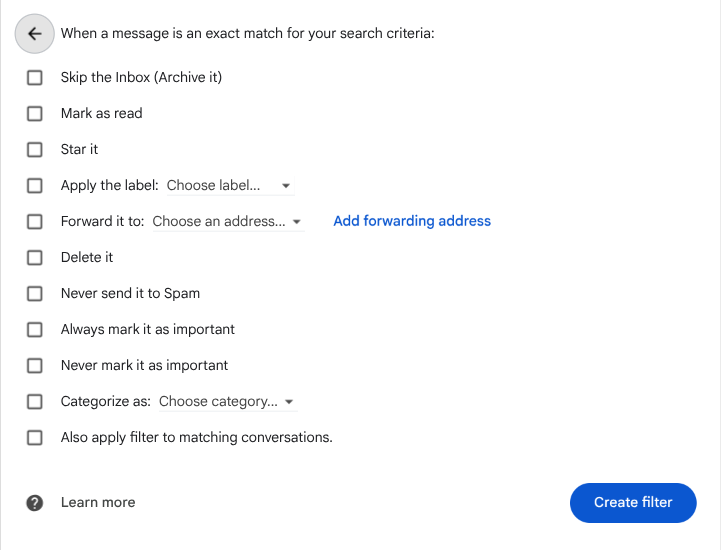
- Leave the other boxes unticked. Press Create filter.
- Gmail lists the filter under Settings → Filters and Blocked Addresses.
If gas and electric come from different senders, make a second filter the same way.
Part 4. Send a test
The filter applies only to mail that arrives from now on. To see it work today, open a recent bill email, press Forward, put your bills address in To, and send. Within a minute or two, a Filed line appears under What has arrived on Add bills.
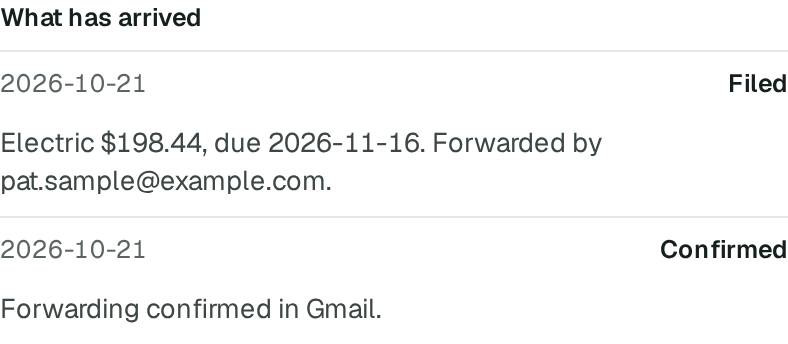
Send the test from the Gmail address you signed up with. A forward from any other address is not filed.
If something is off
| What you see | What to do |
|---|---|
| Gmail says it sent a confirmation email, but it is not in my inbox | It went to your bills address. Reload Add bills; the link is on the card. |
| My bills address is not in the Forward it to list | It has not been confirmed yet. Do Part 2. The Add forwarding address link beside the list does the same as Part 1. |
| Gmail will not let me add a forwarding address | A work or school Google account can be set by its administrator to block forwarding outside the organisation. Ask them, or forward bills by hand from any mailbox. |
| The filter exists but nothing has arrived | Filters apply to new mail only. Wait for the next bill, or send a test by hand. |
| The test says Forwarded by …, who isn't you | Forward from the address you signed up with. |
| I pressed Issue a new address | The old address stopped working. Add and confirm the new one (Parts 1 and 2), then change the filter to it. |
Anything else: the troubleshooting page.